Your pet’s care shouldn’t live in one person’s head. Whether it’s your partner, your kids, or a roommate who always forgets if the dog got fed – Everkin makes it easy to bring everyone into the same household so nobody’s guessing.
Here’s how it works, step by step.
Good to know: Creating a household and inviting members is an Everkin+ feature. Joining a household with an invite code is free for everyone.
Find your household settings
Open the Family tab at the bottom of the app. You’ll see your household name, your role, and everyone who’s currently part of the household. Tap Manage in the top-right to invite people, adjust roles, or make changes.
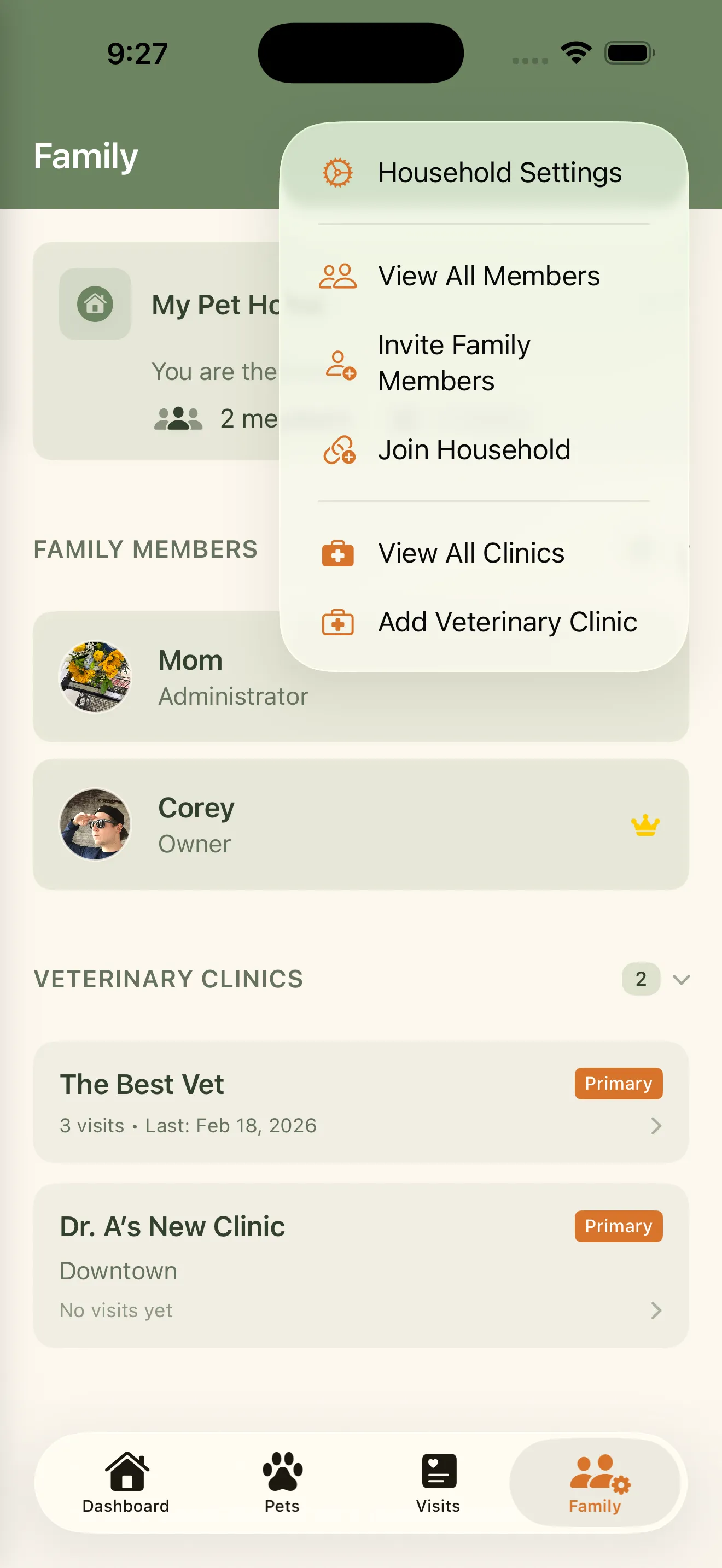
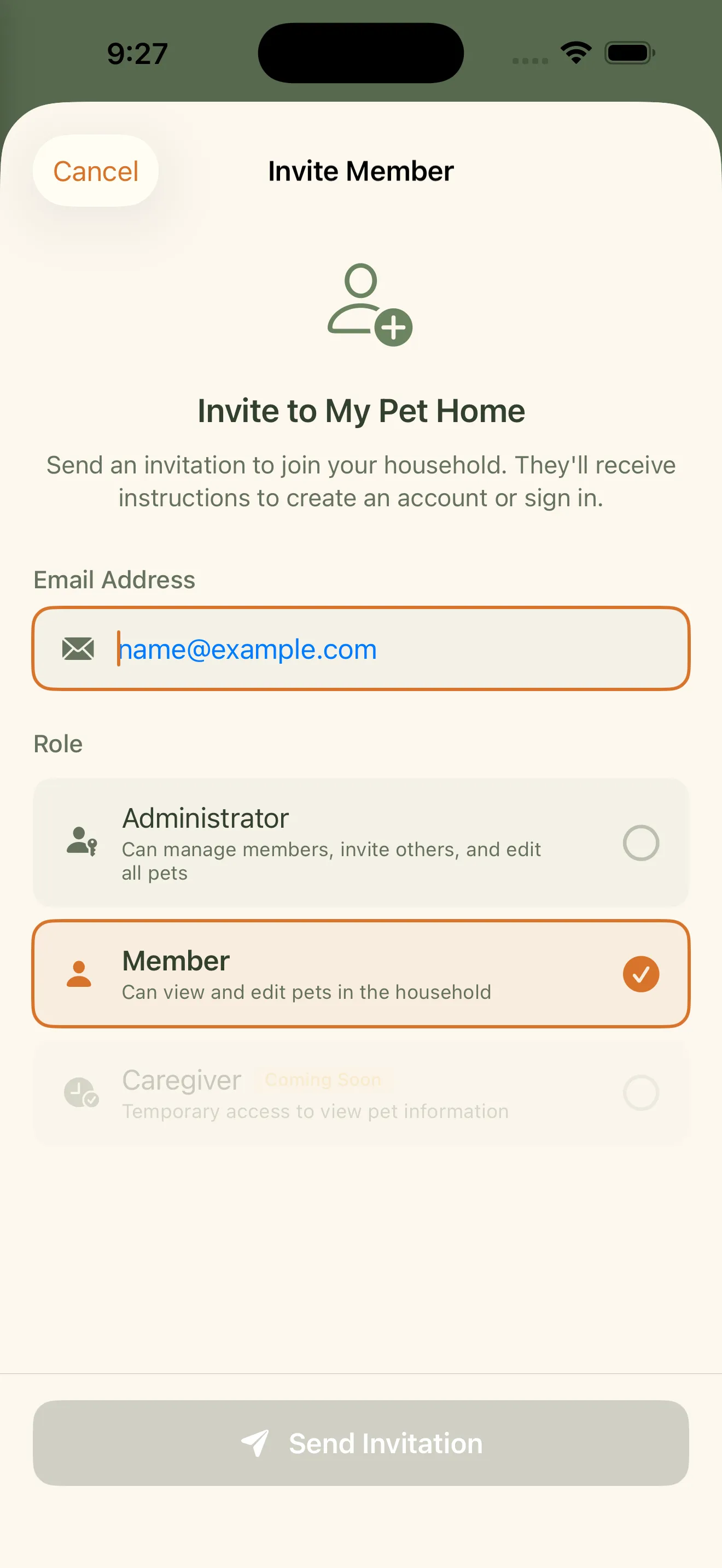
Invite family members
Tap Invite Member to generate a unique invite code. Share it however you want – text, email, sticky note. When someone enters your code, you pick their role: Admin gets full control over settings and members, while Member can log care and view everything but can’t change the household itself.
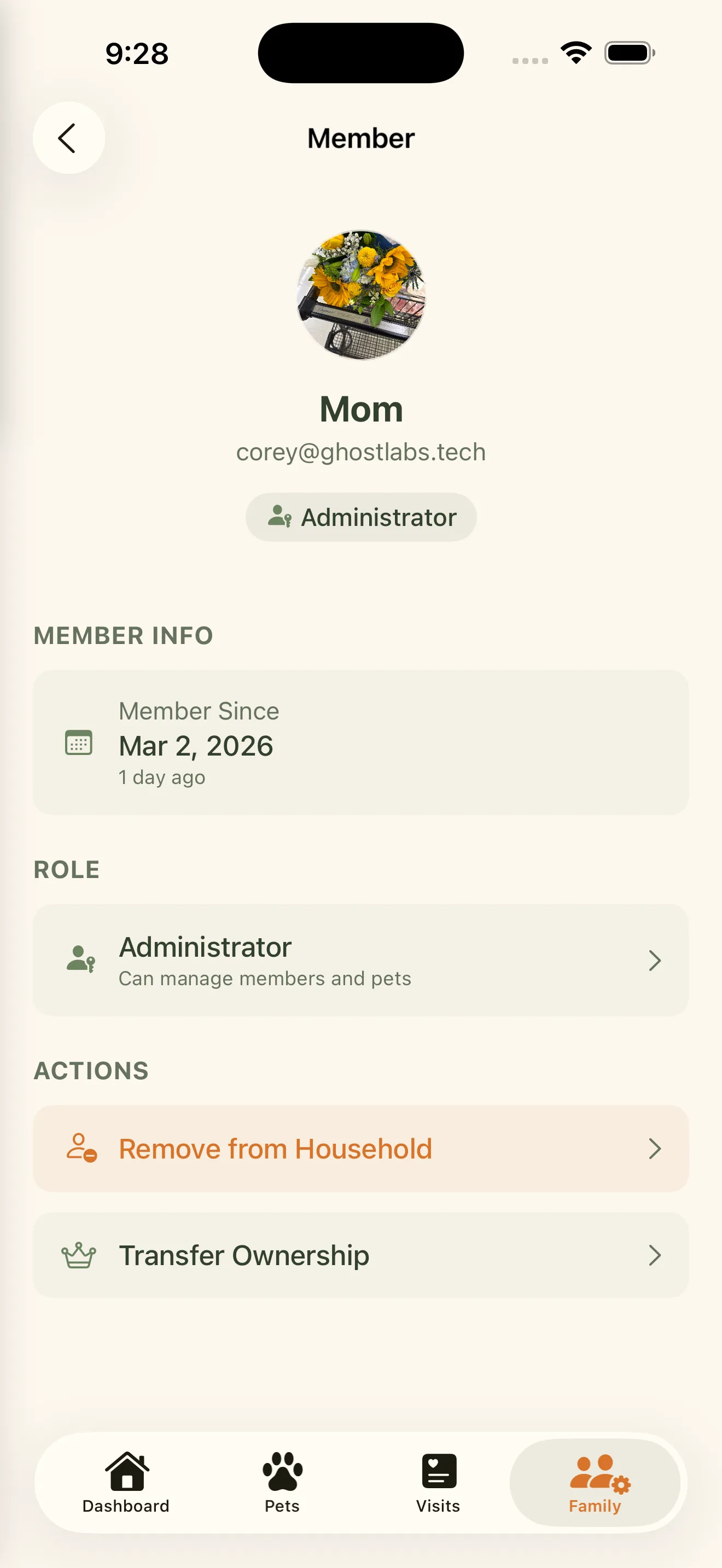
View member details
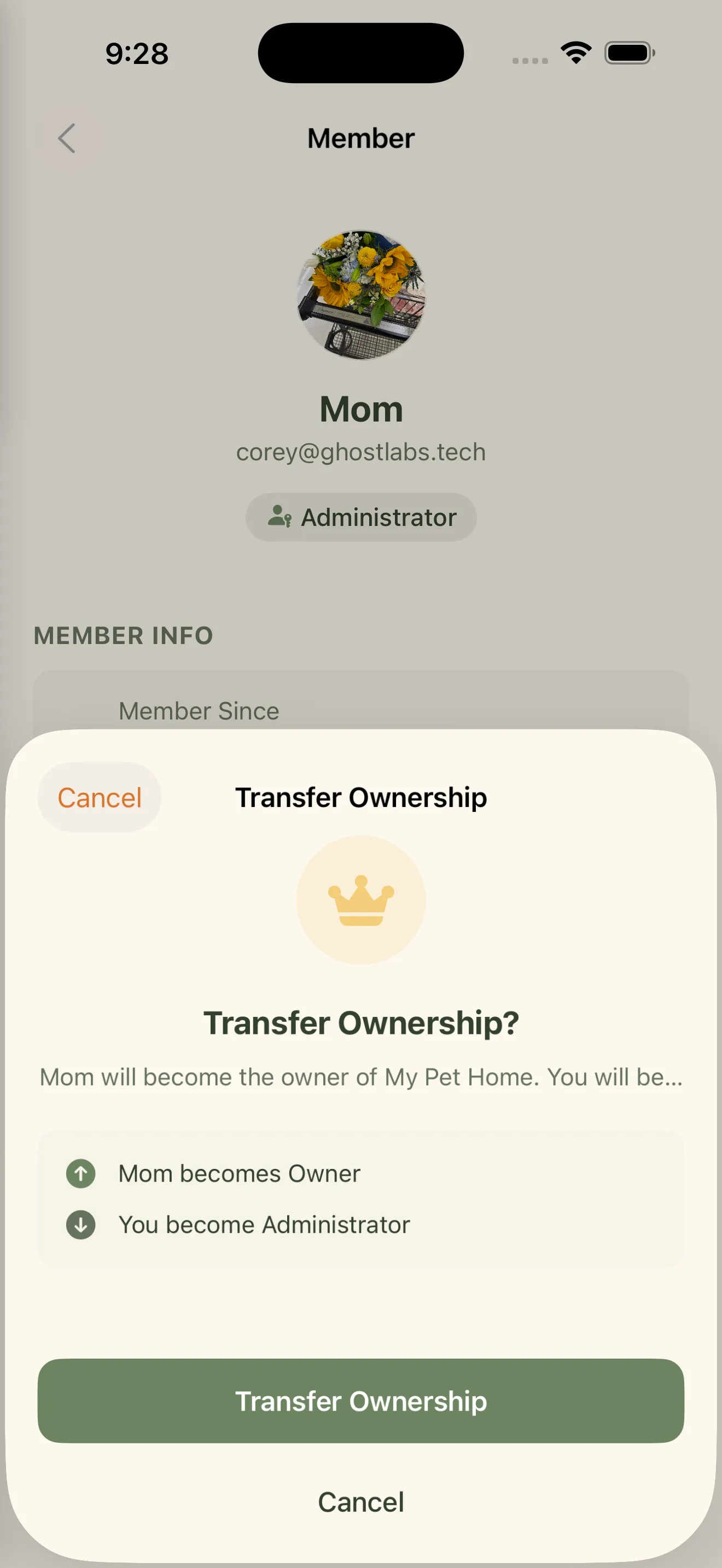
Tap any member to see their info, role, and when they joined. From here, admins and owners can remove someone or transfer ownership.
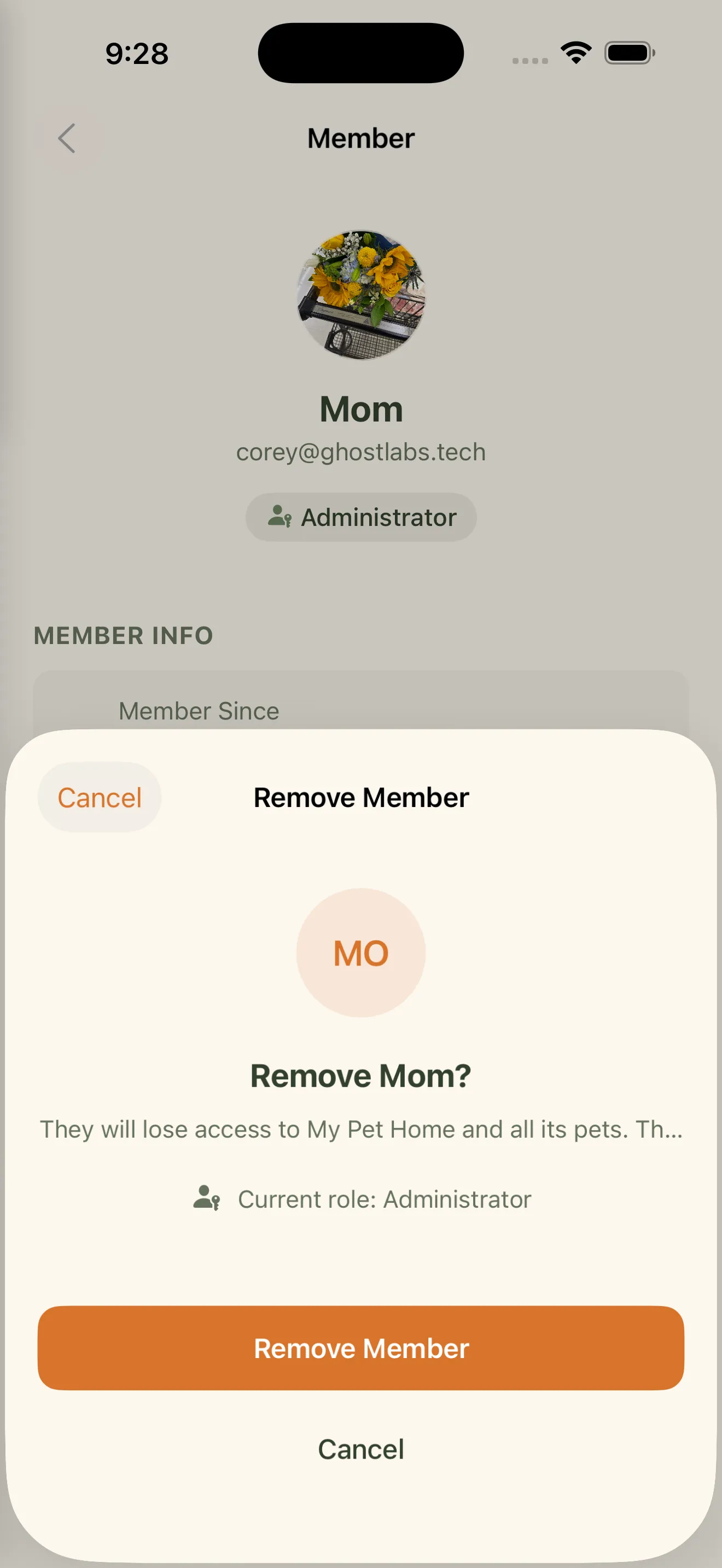
Remove someone if you need to
Life changes. If someone moves out or no longer needs access, admins and owners can remove them with a quick confirmation. Their access is revoked immediately, but nothing they logged gets deleted – the care history stays intact.
Transfer ownership when it makes sense
Every household has exactly one owner. If you need to hand the reins to someone else – maybe your partner is the primary caregiver – you can transfer ownership from the member detail screen. The new owner gets full control, and you become an admin. It’s a clean handoff.
Join a household with an invite code
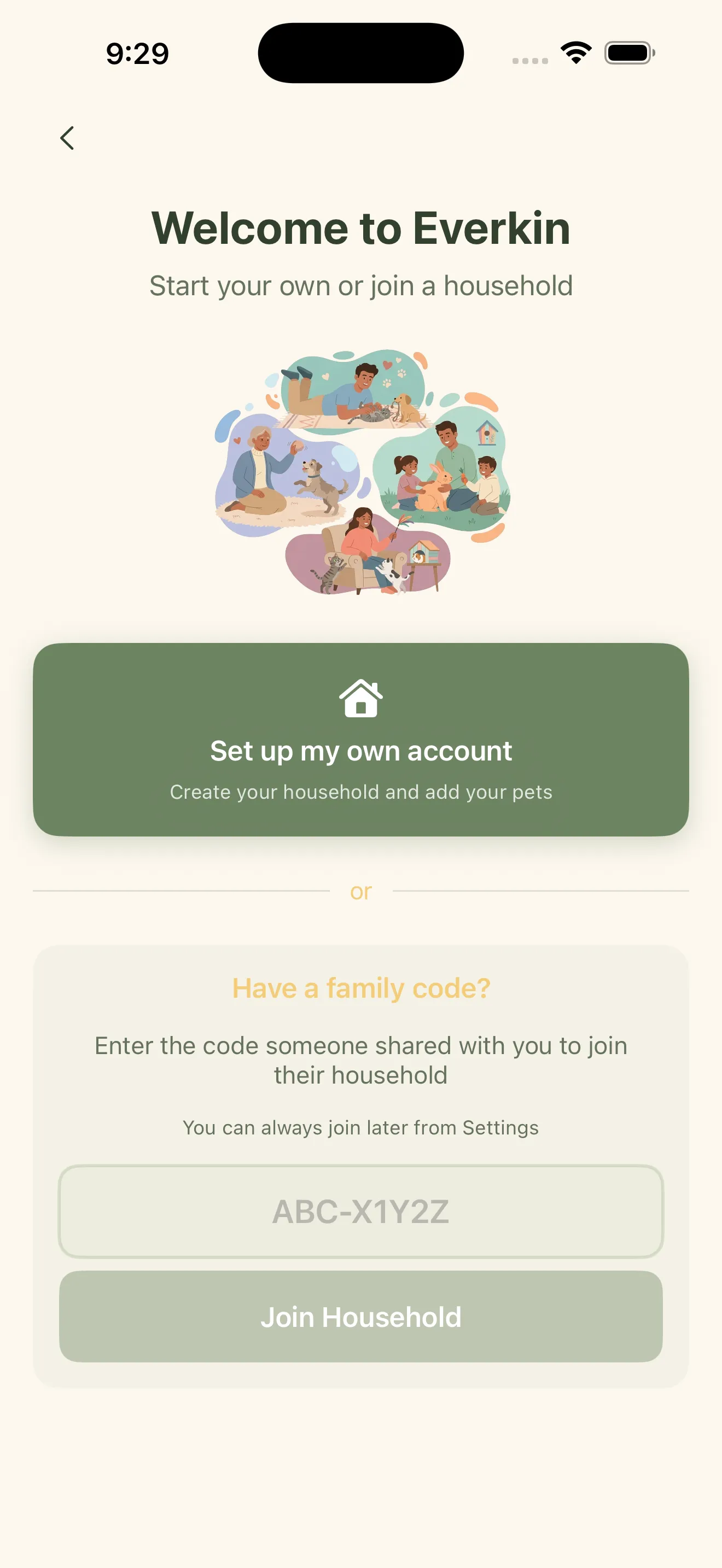
Got a code from a family member? During onboarding, tap Join Existing Household and enter it. You’ll instantly see all their pets, care history, and vet info. No setup required – just enter the code and you’re in.
Transfer a pet to another household
Pets sometimes need to move to a new household, and their care history can move with them. The current owner creates a secure transfer code from the pet’s profile and shares it. The new owner enters the code, reviews the pet, and accepts. The full walkthrough is in the pet transfer guide.
Caregiver Mode
Everkin includes a dedicated caregiver role for pet sitters and dog walkers. They get temporary, limited access to the information they need – feeding schedules, medication reminders, emergency contacts – without seeing your full medical history. Invite caregivers with a share link, set customizable permissions, and access expires automatically when the job is done.